
Currently for the Bosch smart system only.
Bosch smart system · Step by step
Check your Bosch eBike online.
Step-by-step help.
From preparation to confirmed completion: see every step for lighting changes, ID conflicts and diagnostic reports. The service interval has a separate direct procedure, explained below.
Purchases are available only with a billing address in Germany, France, Italy or Spain. Purchases from the United Kingdom, including England, are not available.
A quick explanation
What do you need for BlauWerk remote diagnostics?
You need an eBike with the Bosch smart system, a supported control unit, a USB data cable and Chrome or Edge on a Windows PC. Selected control units also work with Chrome on Android. The free initial check reads the bike's data and then shows only the functions actually available for that eBike.
The bike stays with you: you do not need to send in the eBike or any components. No diagnostic device needs to be sent to you, and no loan device is required.
Created and technically reviewed by BlauWerk · Nikolaus Prasse · Last updated 28 September 2026
Before connecting
Check compatibility.
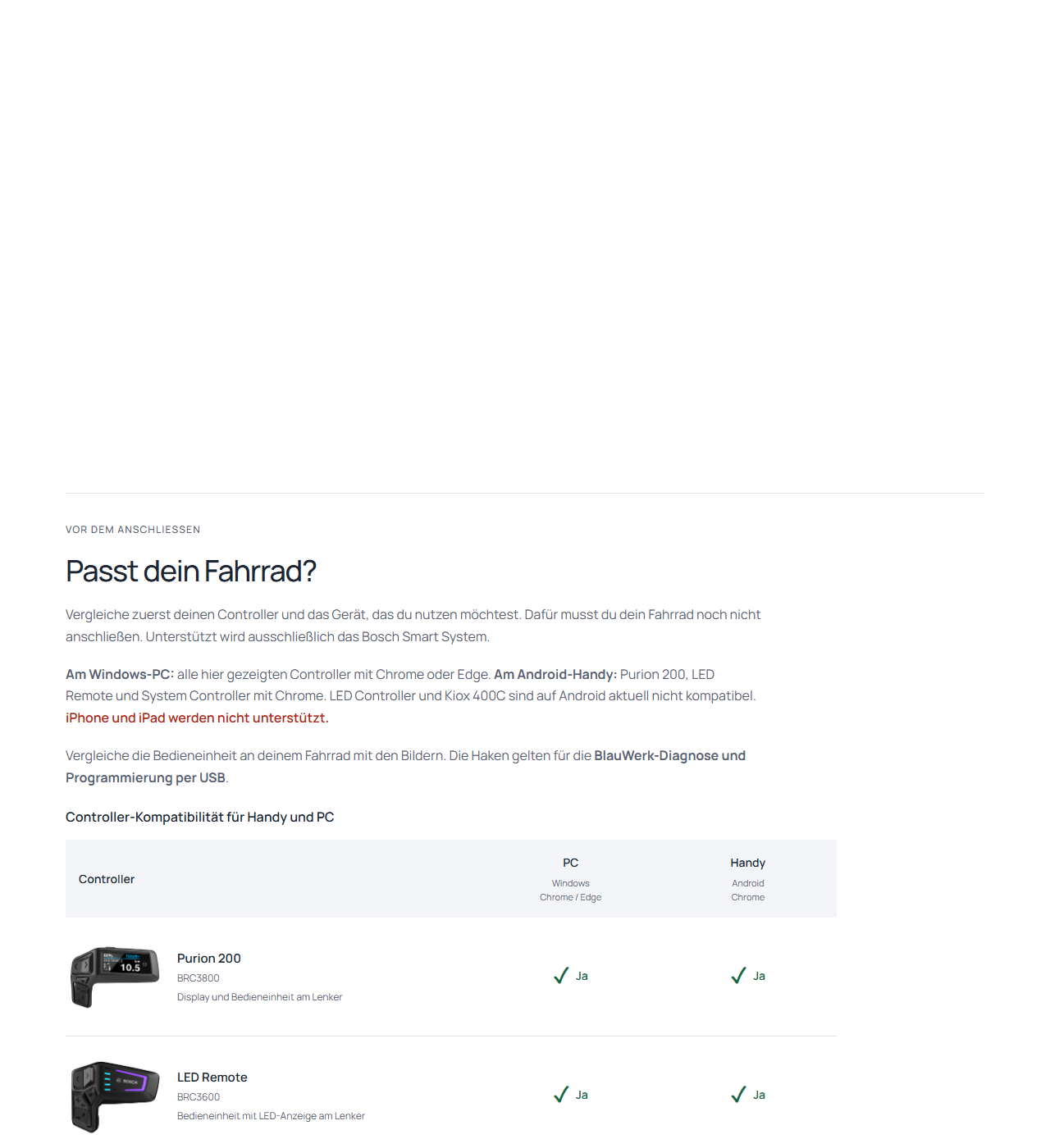
- The only supported system is the Bosch smart system.
- Use Chrome or Edge on a Windows PC. On Android, the page must be opened directly in Chrome.
- iPhone and iPad are not supported. LED Controller (BRC3610) and Kiox 400C are also currently incompatible with Android.
- Have a genuine USB data cable ready. A charging-only cable is not enough.
View the image for this step
 Open full-size image ↗
Prepare the bike
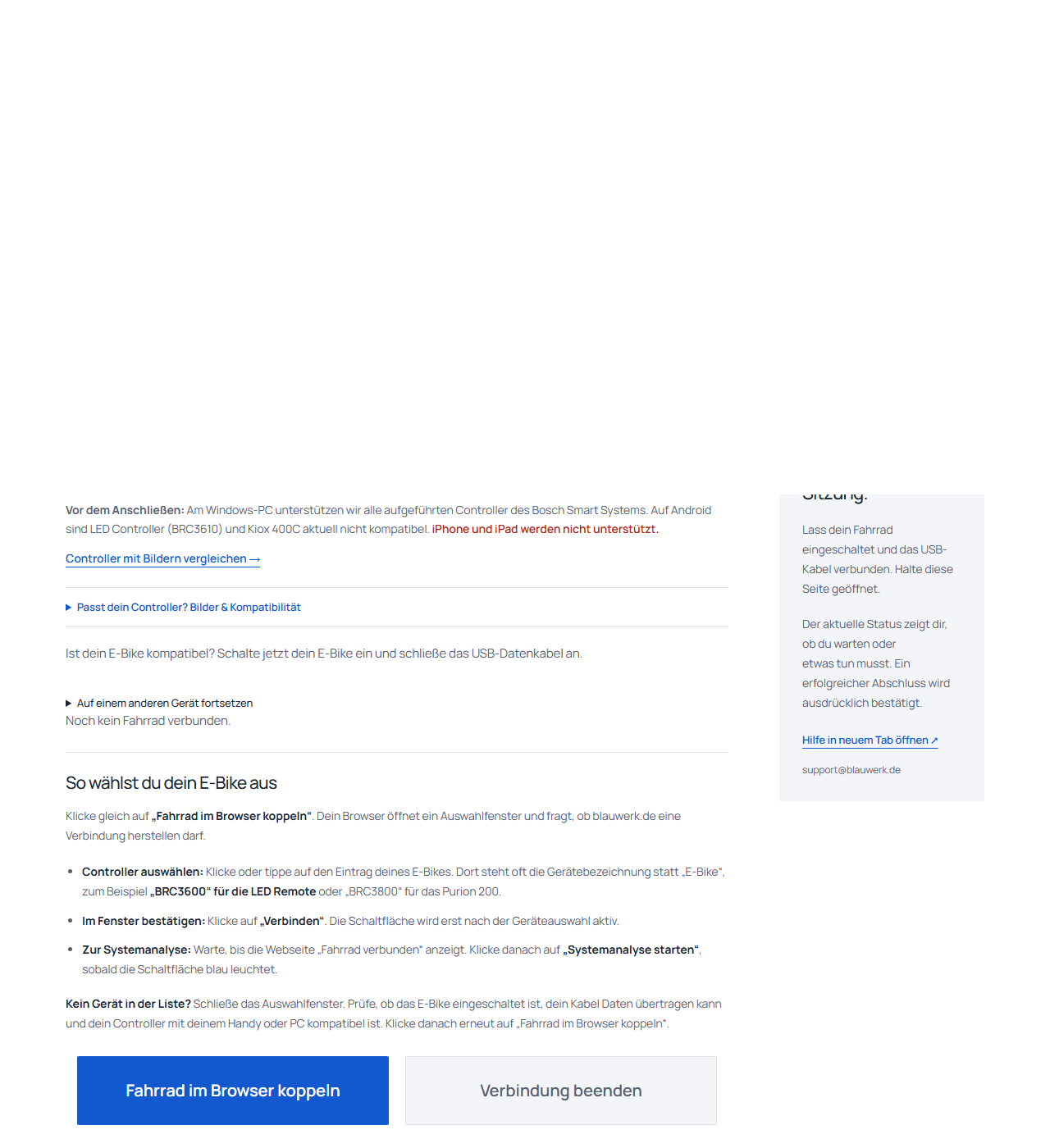
Switch on the eBike and connect it via USB
- Switch the eBike fully on.
- Open the cover of the USB port on the supported control unit.
- Connect the eBike to your PC or Android phone with the USB data cable.
- Keep the bike switched on and the cable plugged in until completion is confirmed.
Important: If the bike does not appear, first check the cable, USB port and power supply.
View the image for this step
 Open full-size image ↗
Browser selection
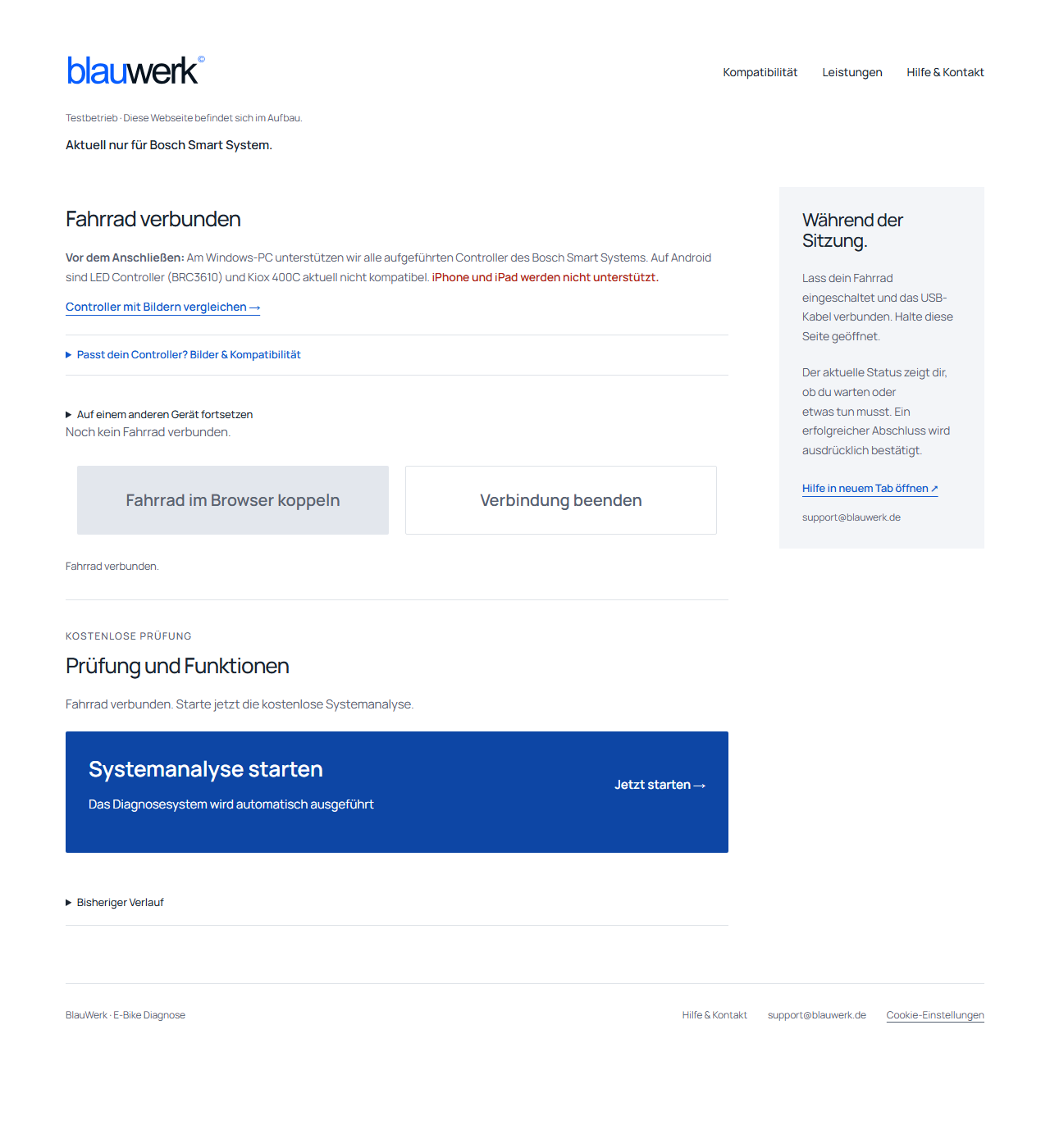
Select the control unit in the browser
- Click “Pair bike in browser”.
- A browser window opens. Select your eBike's control unit there, for example BRC3600 or BRC3800.
- In the selection window, click “Connect”.
- Wait until the website says “Bike connected”.
Empty list? Close the window, switch the eBike on again and reconnect the data cable. Other programs must not use the USB device at the same time.
View the image for this step
 Open full-size image ↗
Free initial check
Start free system analysis
- Click the blue button “Start system analysis”.
- Keep the page open, the eBike switched on and the cable connected.
- Wait for an explicit message confirming that the check is fully complete.
The initial check is free. It determines which functions can be carried out on this specific bike. You do not need to click anything while an operation is running.
View the image for this step
 Open full-size image ↗
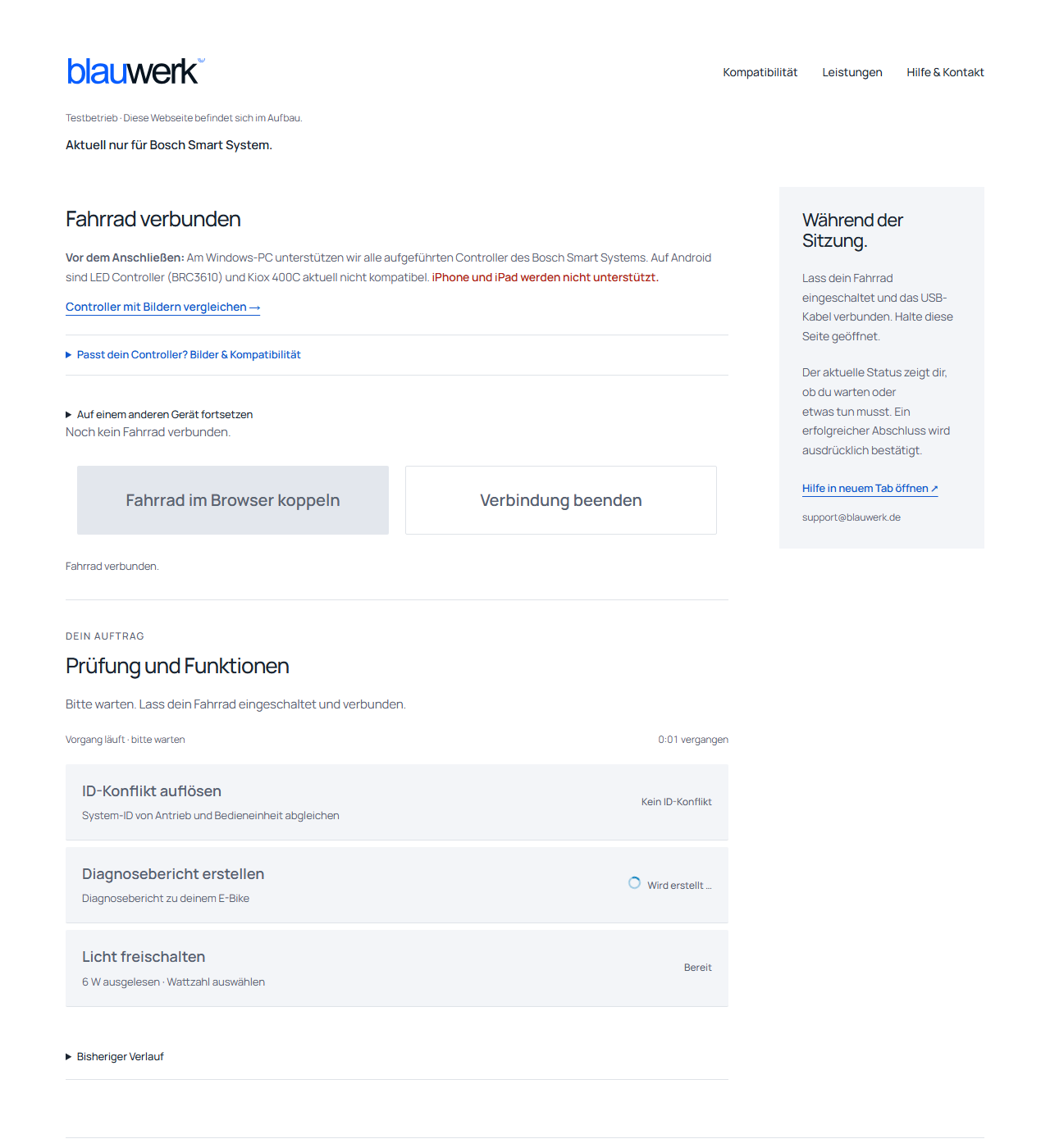
Select service
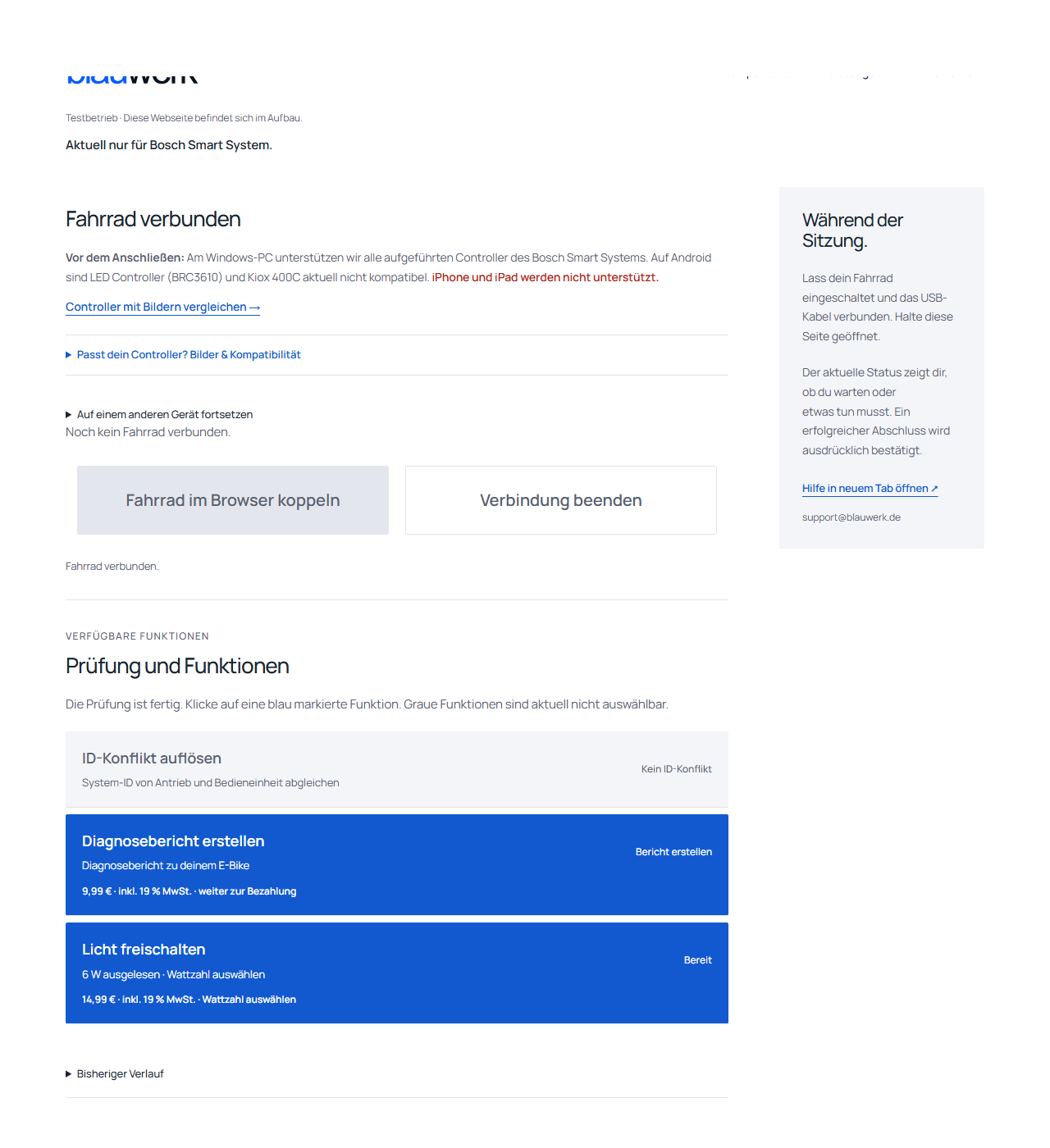
Order only available functions.
- Lights & lighting: Choose the wattage and adjust the existing setting.
- ID conflict: turns blue only when a conflict that can be resolved is detected.
- Diagnostic report: create a PDF of the available bike data.
After clicking, you will see the total price. For paid functions, PayPal, credit and debit cards, Apple Pay and Google Pay are available. The payment methods offered depend on your device, browser, country and the payment provider's approval. You will see the available options before paying. Alternatively, enter a suitable voucher. A free promotional offer is authorised without payment. After successful authorisation, you return to the function page automatically. The reserved session remains available for another 15 minutes after purchase.
View the image for this step
 Open full-size image ↗
Completion
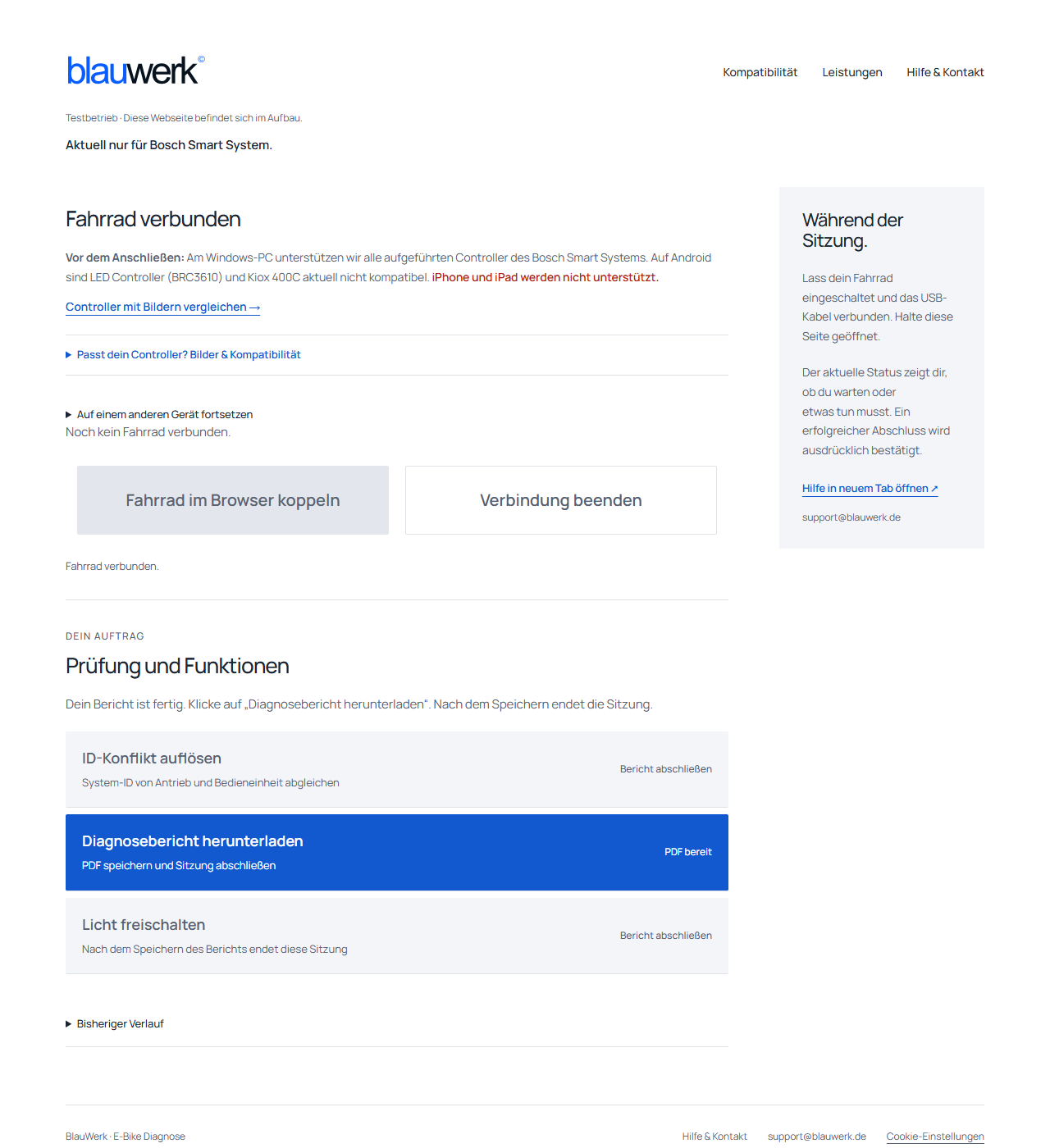
Wait for confirmation.
- Disconnect the cable only when the website explicitly confirms successful completion.
- For a diagnostic report, then click the blue button “Download diagnostic report”.
- The session ends automatically after saving or confirmed completion.
After successful payment, you receive the invoice by email. For a diagnostic report, a copy is also sent by email. No invoice is issued for a voucher or a free promotional report.
View the image for this step
 Open full-size image ↗
Service interval · direct USB procedure
Set or clear the service reminder.
€4.99 including 19% VAT or a valid voucher for the displayed change.
Go to the service interval page →The dedicated service interval page connects your browser directly to the eBike. You do not need a place in the workshop queue. Use a Windows PC with Chrome or Edge and a USB data cable. This direct procedure has not yet been confirmed on Android; iPhone and iPad are not supported.
- Switch on your supported Bosch smart system and connect the data cable. Open the service interval page and click “Select eBike via USB”. Select the control unit and wait until the stored values have been read. There is no charge up to this point.
- Choose “In one year”, “In 1,500 km”, “Custom setting” or “Clear service interval”. Use “Review change” to check the existing and new settings.
- Click “Pay or redeem voucher”. The payment page opens in a new tab. Keep the service interval page open and the eBike connected.
- After payment or voucher redemption, return to the service interval page. If necessary, select “Check authorisation again”. If the USB connection has been interrupted, use “Reconnect eBike”: choose the same eBike so the page can check the values and your existing order again. Do not pay again.
- Check the bike ID and setting, confirm the required fields shown and click “Send interval to this eBike”. Nothing is transferred automatically.
- Wait for the success message after the values have been read back. Only then disconnect the cable and restart the eBike.
A service reminder is not a service: The change neither performs nor proves servicing. After clearing the interval, no new reminder comes from it until you set one again. BlauWerk does not recommend clearing it; servicing according to the manufacturer's instructions remains necessary.
If something goes wrong.
The bike does not appear in the selection.
As long as no check or transfer is running: check that the eBike is switched on, your control unit is supported and the cable can transfer data. Close the device selection, reconnect the cable and open the selection again. A charging-only cable is unsuitable.
The check or transfer is running, but progress has stopped.
Keep the eBike, USB cable and diagnostic page connected. An unchanged percentage does not confirm that the operation has been aborted. Follow the status message. Do not disconnect the cable during an ongoing transfer. If there is no clear next step, contact support with the displayed message.
The website confirms an aborted operation.
Follow the next step in the error message. Reconnect the bike only once the operation is confirmed as aborted and the page asks you to reconnect. After an aborted transfer, the bike's data must be read again in full. Cable and internet problems are possible causes; without clear evidence, the cause cannot be reliably identified.
Diagnostics is unavailable.
Wait for the availability message. While the page reports an unreachable service or maintenance, no new diagnostic session can start. Changing the cable will not resolve this condition. Check again later or use the contact form.
Remote diagnostics shows a queue.
Remote diagnostics for lighting changes, ID conflicts and diagnostic reports processes one bike at a time. Keep the page open and watch your displayed queue position. An unused session ends after ten minutes without action. You have 60 minutes to pay from opening the payment page; after purchase or voucher redemption, the session remains reserved for another 15 minutes to start the function. Ongoing transfers must be fully completed.
I have paid, but the function does not start.
Do not pay again. Keep the diagnostic page open and contact BlauWerk with the order number and displayed message. Also tell us whether you are using a PC or Android phone and which control unit is connected.
Paid for the service interval or redeemed a voucher, but no transfer yet?
Do not pay again or redeem a second voucher. Return to the open service interval page and, if necessary, select “Check authorisation again”. If the page reports an interrupted USB connection, click “Reconnect eBike” there and select the same eBike. The page reads the current state again and checks your existing order. You then review and confirm the transfer yourself. If the next step is unclear, contact us with the order number and message.
Do I have to restart the eBike after changing the interval?
Yes. Leave the eBike switched on and connected via USB until the service interval page explicitly confirms that the transfer and read-back were successful. Then you can disconnect the cable and switch the eBike off and on again. Setting or clearing the reminder does not replace servicing.